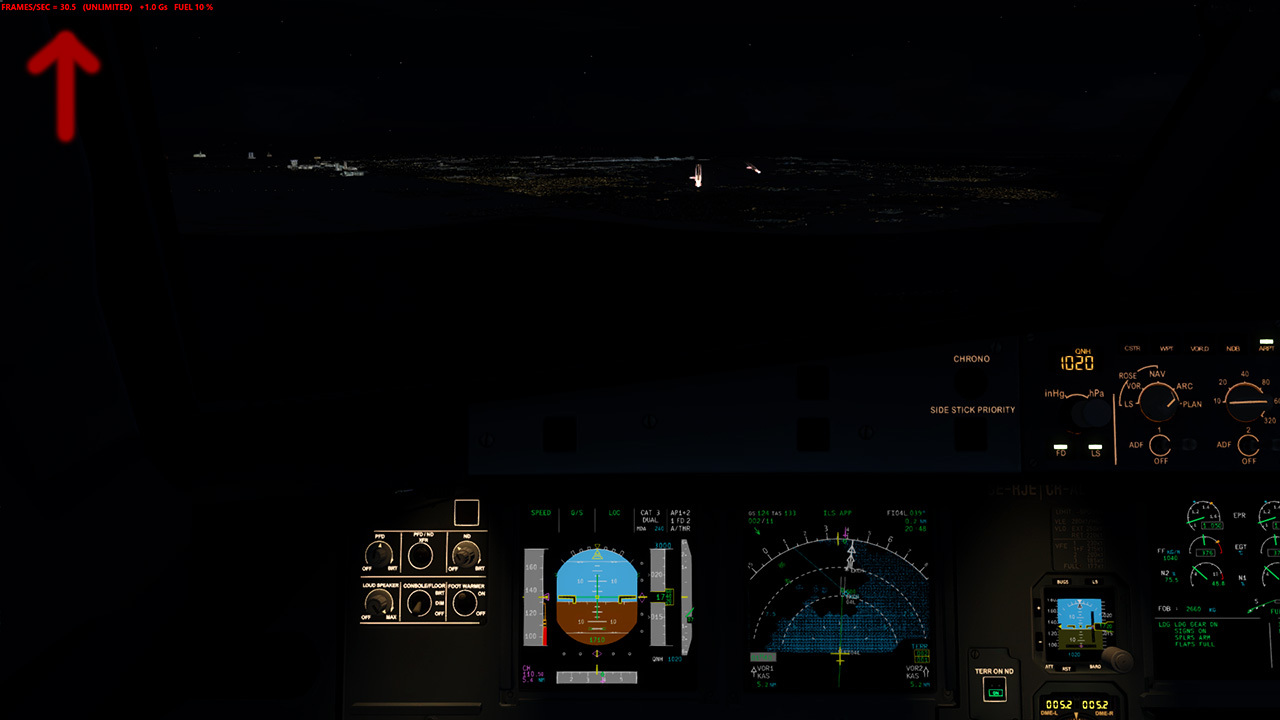
Go to your FSX folder, (wherever your sim is, just locate the root folder) and then go to either one of these two folders (whatever engine variant you want to try this on)
FS_ROOT\SimObjects\Airplanes\FSLabs A320 CFM\Panel
FS_ROOT\SimObjects\Airplanes\FSLabs A320 IAE\Panel
Please make a backup of your panel.cfg located there. Call it panel.cfg.original or something that will help you identifying the file.
Then just edit the panel.cfg (with notepad, no Wordpad or any other text editor which might alter the plain text format of this file), scroll a bit down till you locate the following:
//////////////////////////////////////////////////
// Main Panel DUs
//////////////////////////////////////////////////
[VCockpit01]
size_mm=1024,1024
pixel_size=768,768
texture=$DUPFDND
background_color=0,0,0
gauge00=..\..\FSLabs A32X\FSL_A32XX!Controller, 0, 0, 0, 0
gauge01=..\..\FSLabs A32X\FSL_A32XX!LCDScreen_1, 56, 56, 400, 400, F0.85
gauge02=..\..\FSLabs A32X\FSL_A32XX!LCDScreen_2, 568, 56, 400, 400, F0.85
gauge03=..\..\FSLabs A32X\FSL_A32XX!LCDScreen_5, 56, 568, 400, 400, F0.85
gauge04=..\..\FSLabs A32X\FSL_A32XX!LCDScreen_6, 568, 568, 400, 400, F0.85
You see those last two lines? gauge03 and 04? those are the 1st officer PDF and ND. COmment them with // at the beginning of the line and save the file.
They should look like this:
gauge00=..\..\FSLabs A32X\FSL_A32XX!Controller, 0, 0, 0, 0
gauge01=..\..\FSLabs A32X\FSL_A32XX!LCDScreen_1, 56, 56, 400, 400, F0.85
gauge02=..\..\FSLabs A32X\FSL_A32XX!LCDScreen_2, 568, 56, 400, 400, F0.85
//gauge03=..\..\FSLabs A32X\FSL_A32XX!LCDScreen_5, 56, 568, 400, 400, F0.85
//gauge04=..\..\FSLabs A32X\FSL_A32XX!LCDScreen_6, 568, 568, 400, 400, F0.85